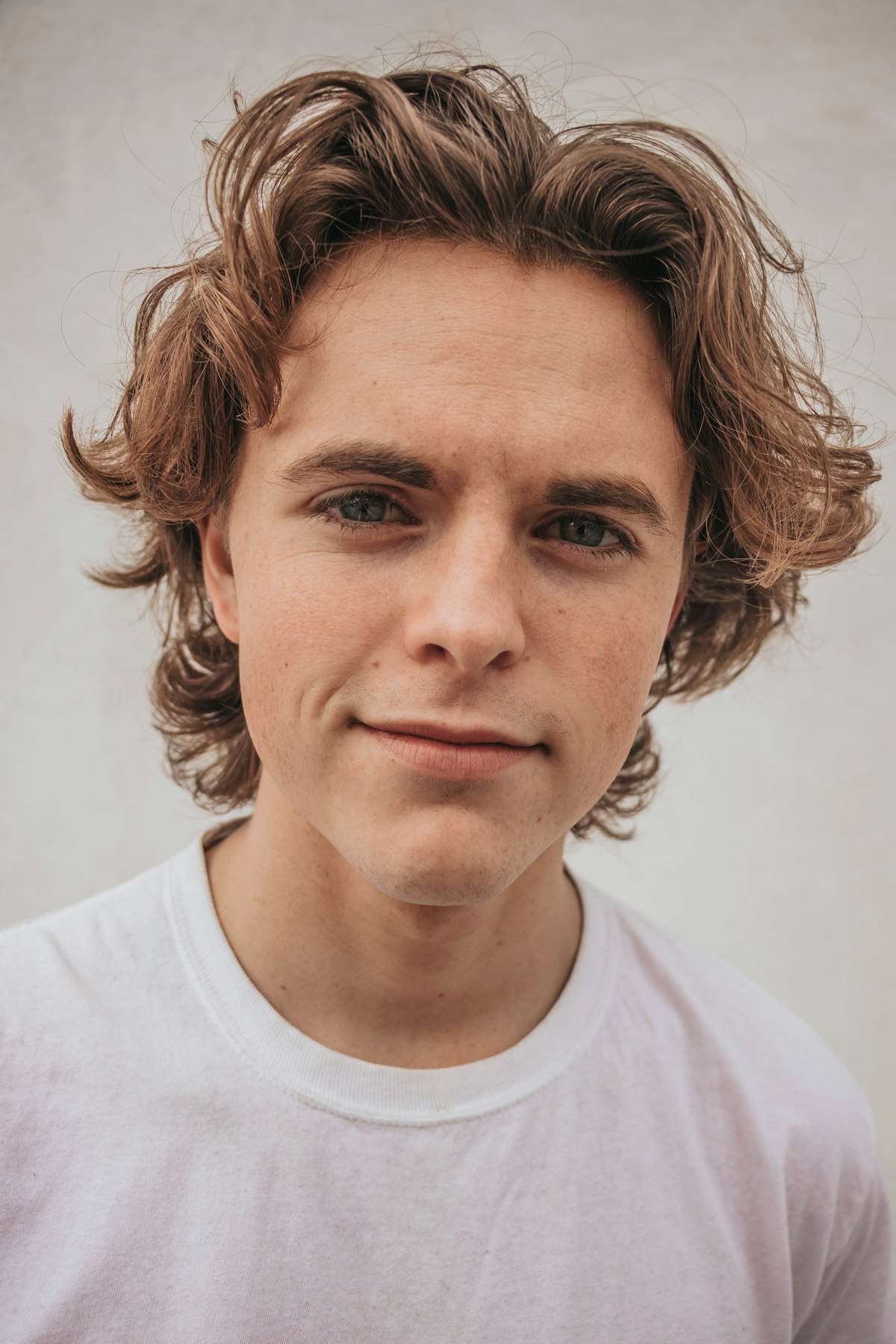
Not every portrait gets 90 minutes of retouching. Event photographers might deliver 200 images from a single shoot. Corporate headshot sessions might produce 30 portraits in an afternoon. You need a fast workflow that still looks professional.
Here’s my 5-minute retouching process, broken into steps that I time myself on.
Minute 1: Healing Pass
Open the image and immediately create a new blank layer. Select the Healing Brush, set to “Sample All Layers,” and quickly remove:
- Obvious blemishes (pimples, temporary marks)
- Stray hairs crossing the face
- Any distracting spots on clothing
Don’t get precious about this. You’re looking for things that jump out in the first second of viewing the image. If you have to zoom in to see it, skip it.
Speed tip: Use keyboard shortcuts. The bracket keys resize your brush. Hold Alt/Option to sample. Don’t touch the toolbar.
Minute 2: Skin Smoothing (Quick Method)
Forget frequency separation for speed work. Use this instead:
- Stamp visible to a new layer (Ctrl+Alt+Shift+E)
- Apply Gaussian Blur at 8-12 pixels
- Add a black mask (hold Alt while clicking the mask icon)
- Paint white at 40-50% opacity over skin areas only — avoid eyes, eyebrows, lips, nostrils, hairline
This is crude compared to frequency separation, but at 40-50% opacity with a mask, it produces surprisingly natural results. The key is keeping the opacity low enough that skin texture shows through the blur.
Minute 3: Quick Dodge and Burn
Create a new layer set to Soft Light blend mode, filled with 50% gray. With a soft brush at 8-10% opacity:
- Brighten under-eye shadows (3-4 strokes)
- Brighten the bridge of the nose
- Add a subtle highlight to the cheekbones
- Darken any distracting bright spots
You’re not sculpting here — you’re making quick, broad corrections to the existing light. Five or six strokes total.
Minute 4: Eyes and Color
Eyes (30 seconds):
- Brighten the catchlights with a quick Curves adjustment masked to just the catchlights
- Add a tiny bit of sharpening to the eyes with Unsharp Mask on a stamped layer with a black mask
Color (30 seconds):
- Add a Curves adjustment layer
- Lift the shadows slightly for a softer look
- Add a gentle S-curve for contrast
- Optionally warm the highlights slightly in the Blue channel
Minute 5: Final Polish
- Crop if needed
- Check the image at full size — scan for anything distracting you missed
- Apply output sharpening for the delivery format (web: Unsharp Mask 60%, 0.8px radius)
- Save
Making It Even Faster: Actions
Once you’ve done this workflow fifty times, record the repetitive parts as Photoshop Actions:
- Skin smoothing setup (stamp, blur, mask creation) → one button
- Dodge and burn layer creation → one button
- Output sharpening → one button
With Actions handling the layer setup, the actual retouching work takes 3 minutes.
When 5 Minutes Isn’t Enough
This workflow is designed for a “good” result that satisfies most commercial needs. It’s not designed for beauty, editorial, or fine art work. Know the difference and manage client expectations accordingly.
If a client is paying for headshots at $50 per image, they’re getting 5-minute retouching. If they’re paying for beauty retouching at $200 per image, they’re getting the full treatment. Price your work accordingly and be transparent about what each tier includes.
Practice Drill
Here’s how I trained my speed: download ten diverse portrait images, set a 5-minute timer for each one, and retouch them all in sequence. Don’t stop the timer to think. After all ten, review your work. The first few will be rough, but by the tenth you’ll have developed a rhythm that becomes automatic.