Portrait Cleanup Before You Retouch: Why Your Starting File Is Half the Battle

Portrait Cleanup Before You Retouch: Why Your Starting File Is Half the Battle

A few years into doing this work, I had a client send back a fully retouched beauty shot with a single line of feedback: “Can you fix the collar?” I zoomed out and there it was, a small wrinkle in the model’s shirt that I had somehow completely tuned out for the entire two hours I’d spent on her skin. I had gone straight into pore work and left a distracting wardrobe problem sitting right in the frame.

From Art Director to Portrait Photographer: What Valerie Bogle's Studio Setup Teaches Us About Intentional Beauty Work

From Art Director to Portrait Photographer: What Valerie Bogle's Studio Setup Teaches Us About Intentional Beauty Work

There’s a particular kind of client who walks into a beauty shoot convinced the camera will confirm every bad thing she’s ever believed about herself. I’ve worked with enough of them, on the post-processing side at least, to know that what happens before the shutter clicks matters just as much as what happens in Photoshop afterward. That’s why a studio tour like the one Valerie Bogle gives in Watch the full tutorial on YouTube hit me differently than a standard lighting breakdown or gear review.

How to Paint Light and Volume Back Into a Face Using Photoshop Layers

How to Paint Light and Volume Back Into a Face Using Photoshop Layers

There’s a specific kind of defeat that comes from delivering a gallery and hearing back that the edits look “a little flat.” I’ve been there. Early in my beauty retouching career, I was so focused on removing things, smoothing, erasing, fixing, that I forgot skin has actual shape. It catches light on a nose bridge. It has shadow under a cheekbone. When you retouch that dimension away, even a perfectly exposed photo can start to look like a wax figure.

Stop Fighting Your Masks: How the Subtract Tool Turns Messy Selections Into Clean Edits

Stop Fighting Your Masks: How the Subtract Tool Turns Messy Selections Into Clean Edits

There’s a particular kind of frustration that comes from making a solid selection, bumping the exposure, and then noticing that weird glowing halo creeping around the edges of your subject. I ran into this constantly when I first started doing beauty work, and for a long time my solution was either to accept the flaw or spend twenty minutes in Photoshop doing painstaking manual cleanup. Neither option felt right. When I came across this Matt Kloskowski tutorial on the power of the Subtract tool in Lightroom and Photoshop masking, I realized I had been overcomplicating something that has a much more elegant fix built right into the tools I already use every day.

AI-Enhanced Beauty Editing: Celebrating Creative Innovation in Portrait Retouching

AI-Enhanced Beauty Editing: Celebrating Creative Innovation in Portrait Retouching

AI-Enhanced Beauty Editing: Celebrating Creative Innovation in Portrait Retouching I’ve been watching the portrait retouching landscape shift dramatically over the past year, and I’m genuinely excited about where AI-assisted beauty editing is heading. We’re at a fascinating crossroads where traditional retouching techniques meet intelligent automation, creating possibilities that were simply unimaginable just a few years ago. The Current State of AI in Portrait Work When we talk about AI-enhanced portraits today, we’re discussing something far more nuanced than simple filter applications.

How Lightroom's New Masking Tools Can Transform the Way You Make Local Adjustments

How Lightroom's New Masking Tools Can Transform the Way You Make Local Adjustments

There’s a moment in almost every retouching session where I think: if I could just isolate that one thing without painting around it for ten minutes, this would be perfect. For portrait work, that’s usually a sky blowing out behind a subject, or a background that needs to be cooled down while the skin stays warm. For years, Lightroom’s local adjustment tools were a workaround at best, and I’d end up hopping over to Photoshop just to grab a clean mask.

How to Mask Any Color-Based Element in Lightroom Without Touching a Selection Tool

How to Mask Any Color-Based Element in Lightroom Without Touching a Selection Tool

There’s a particular kind of editing frustration I know well: you’re looking at an image and you need to isolate something specific, something Lightroom’s AI has no preset button for. Not the sky. Not the subject. Something in between, like a textured roof, a mountain range, a fabric pattern in the background. For years, my reflex was to sigh, open Photoshop, and start drawing paths. That workflow costs time, and time is the thing I never have enough of between client deliveries and workshop prep.

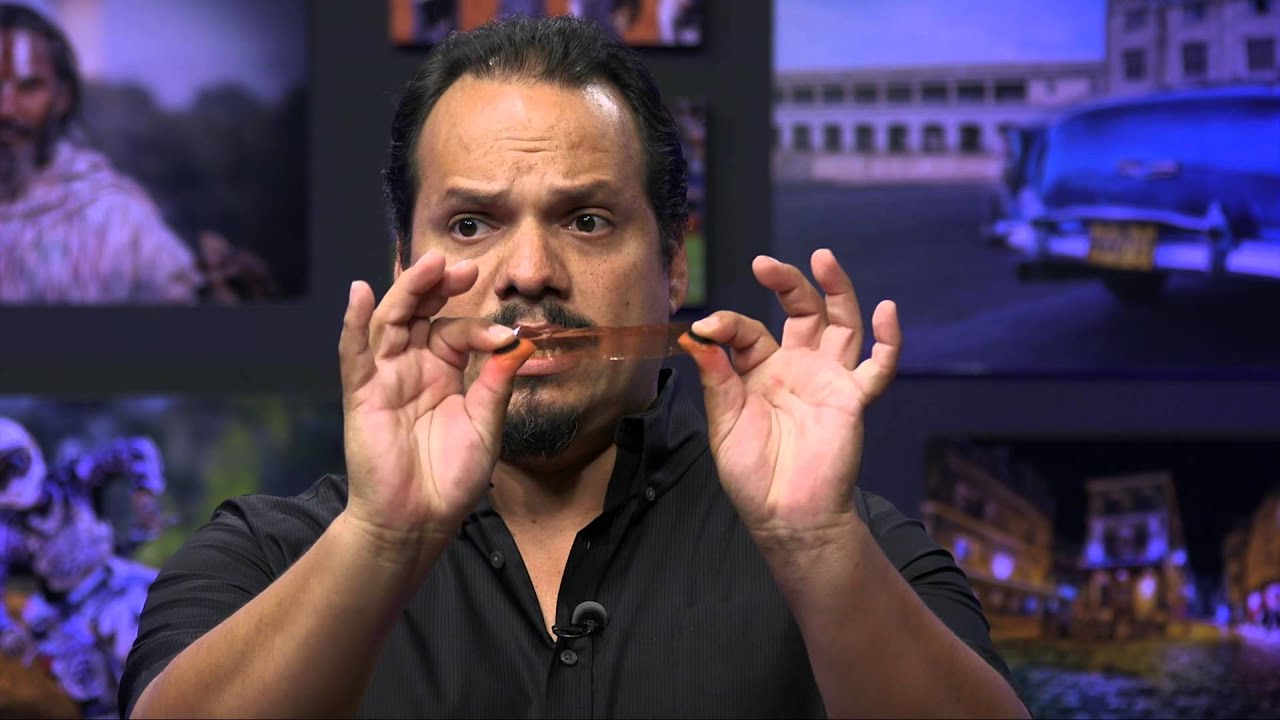
Three Tools, One Great Portrait: Breaking Down Joel Grimes' No-Fuss Retouching Workflow

Three Tools, One Great Portrait: Breaking Down Joel Grimes' No-Fuss Retouching Workflow

There’s a version of me from a few years back who would have spent three hours on a single portrait, chasing some imaginary level of perfection, and still delivered something that looked overworked. A client once told me my edits looked “a little plastic” and I still think about that comment every time I open a new file. What I’ve learned since then is that the best retouching is almost invisible, and the best workflows are simpler than you’d expect.

The 4-Layer Method I Use to Retouch Eyes That Actually Look Alive

The 4-Layer Method I Use to Retouch Eyes That Actually Look Alive

A few years into freelancing, I had a client send back a batch of beauty headshots with a note that stopped me cold. “The eyes look like marbles,” she wrote. She wasn’t wrong. I had sharpened the irises, brightened the whites, and painted in a catch light I thought looked natural. What I’d actually done was strip out every subtle tonal variation that makes eyes read as human. They were technically clean and completely lifeless.

The One Lightroom Masking Mode Most People Never Switch On

The One Lightroom Masking Mode Most People Never Switch On

There’s a specific frustration I run into constantly when editing beauty and product work: the background needs its own treatment, completely separate from the subject. Sometimes it’s a seamless sweep that needs to pop. Sometimes it’s a reflective floor that should feel glossier, or a wall that’s pulling attention away from the face I’ve spent an hour perfecting. The subject selection tools in Lightroom are genuinely impressive now, but they’re built around the assumption that the subject is the thing you want to adjust.

How to Freestyle a Portrait Retouch in Photoshop (Without a Rigid Plan)

How to Freestyle a Portrait Retouch in Photoshop (Without a Rigid Plan)

There’s a version of portrait retouching that feels like following a recipe. Same steps, same order, same result every time. For a long time, that was me. I built elaborate action sets (I still name them after movies – my frequency separation stack is called “The Prestige”) and ran every portrait through the same pipeline. It was efficient. It was also making my work look a little lifeless, like I was manufacturing faces rather than finishing photographs.

Frequency Separation Without the Headache: A Step-by-Step Breakdown of Joel Grimes' Approach

Frequency Separation Without the Headache: A Step-by-Step Breakdown of Joel Grimes' Approach

There is a specific kind of dread that comes from over-retouching skin. I know it well. Early in my retouching career, I handed a beauty client a set of images so smoothed-out that she emailed back asking if I had accidentally used a blur filter on her face. I had not. I had just been using the wrong tools with too much confidence. Frequency separation was the technique that eventually pulled me out of that hole, but for a long time I avoided it because every tutorial I found turned it into a 45-minute production involving terminology that felt designed to intimidate.